
There is no official Chromecast app for PC from Google, and most people do not need one. Google Chrome is the Chromecast app on Windows. Open Chrome, click the three-dot menu, choose Cast, save, and share, then Cast, and pick your device. For local video files, VLC and Plex do the job better than the browser.
Before you start
- Applies to: Windows 10 and Windows 11, casting to a Chromecast of any generation, Chromecast with Google TV, the Google TV Streamer, or any TV with Google Cast built in.
- You need: Google Chrome installed, and the PC and the TV device on the same Wi-Fi network. That last point is the single most common reason casting fails.
- You do not need: Extra hardware, a subscription, or a paid app for basic casting.
Why is there no official Chromecast app for Windows?
Casting was built into Chrome rather than shipped as a separate program. Google offered a Google Cast extension years ago, then folded it directly into the browser, so the feature lives in Chrome’s menu with nothing to install.
This matters when you go searching for a download. Google publishes no desktop Chromecast application, so anything advertised as “the official Chromecast app for Windows” is not from Google. There are good third-party casting apps, and the ones worth using are listed further down, but none of them is a Google product.
How do I cast from Chrome? (the built-in method)
The simplest route needs no downloads at all.
Cast a single tab
- Open Google Chrome and go to the page or video you want to cast.
- Click the three-dot menu at the top right.
- Click Cast, save, and share, then Cast.
- Click your Chromecast when it appears in the list.
- The tab mirrors to your TV, and you control playback from your PC.
Tab casting suits YouTube, Netflix, Spotify, and most streaming sites. Chrome renders the video locally and sends it on, so quality tracks your Wi-Fi speed.
Cast your entire desktop
- Open the three-dot menu, then Cast, save, and share, then Cast.
- Click the Sources dropdown.
- Select Cast desktop.
- Choose your Chromecast.
- Pick which screen to share if you have several monitors, tick Also share system audio for sound, then click Share.
Desktop casting mirrors everything on screen, which suits presentations, desktop apps, and anything outside the browser. Miss the audio checkbox and you get a silent picture, which is the most common complaint about this method. Click Stop in the Chrome casting bar to end it.
Cast from Microsoft Edge
Edge casts to Chromecast too, since it shares Chrome’s engine. Open the three-dot menu, go to More tools, then Cast media to device. Everything after that works as it does in Chrome.
How do I cast local video files from my PC?
Chrome can cast a file, but it plays only a limited set of formats, so MKV and AVI files often fail. These two tools handle the job properly.
VLC, for a quick one-off cast
- Open VLC, version 3.0 or later, free from videolan.org.
- Open your file with Media, then Open File.
- Click the Playback menu and select Renderer.
- Click your Chromecast in the list.
VLC handles nearly any format, including MKV with embedded subtitles, and transcodes on the fly when the Chromecast cannot play the file directly. No account, no server setup.
Plex, for a whole media library
If you have a large collection of films, shows, or home videos on your PC, Plex is the stronger option. It turns your computer into a personal media server: point it at your video folders and it organises everything with artwork, descriptions, and subtitles. You then cast from the Plex website in Chrome, or from the Plex app on your phone.
- Local streaming and casting to Chromecast are free.
- The paid Plex Pass tier adds offline downloads, live TV recording, and hardware transcoding.
- Handles MKV, MP4, AVI, and most other formats with automatic transcoding.
Videostream, a Chrome extension
Videostream streams local files from your PC to a Chromecast in up to 1080p. It is an extension rather than a Windows app, and it is a reasonable middle ground when you want to play downloaded videos without running a full media server. The free tier carries ads, and the paid tier adds subtitle support.
Which Windows apps can cast to a Chromecast?
These are third-party rather than Google products, and they are worth a look if you want casting without the browser.
PlayTo TV
Casts to Chromecast, Roku, Fire TV, Apple TV, and DLNA devices, from the internet or from local files. Free, with optional in-app purchases, from the Microsoft Store.

AV Cast
A free Microsoft Store app built specifically for Google Cast devices. It sends songs, images, and videos from your PC to any Cast device on the network, with a plain and simple interface.

Video Caster
Sends local files and online streams to any Google Cast device. Free and paid tiers, from the Microsoft Store.

Playcast
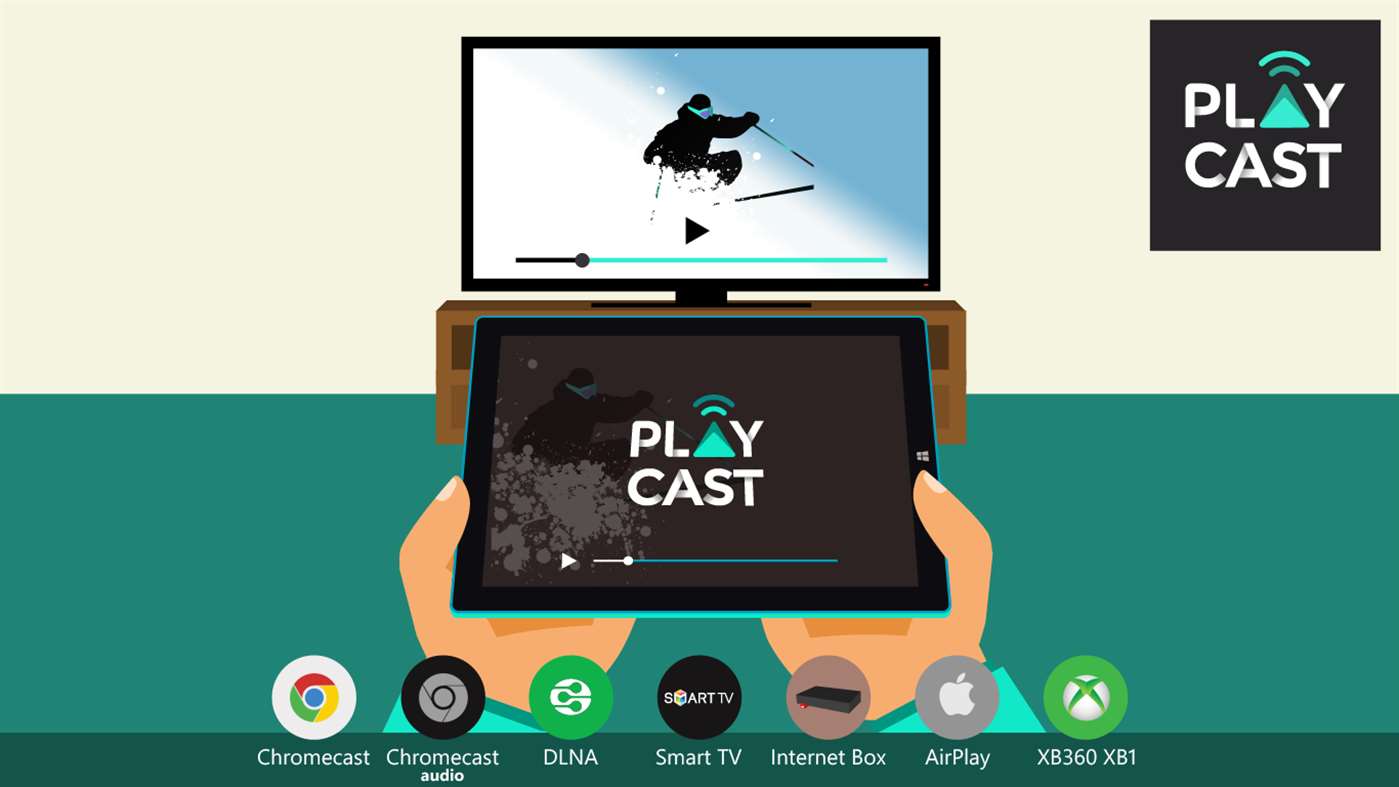
A paid, full-featured media player and caster covering video, music, and photos. It reaches Chromecast, Chromecast Audio, Apple TV over AirPlay, DLNA smart TVs, Miracast, and Xbox, and it is the pick for multi-room Chromecast Audio setups.
Screen Mirror to Chromecast
A paid app dedicated to mirroring the whole Windows desktop to a Cast-enabled TV without going through Chrome. Worth the money only if Chrome’s desktop casting proves unstable for you.

DoCast
A free, open-source casting tool for Windows, Mac, and Linux that speaks the Cast protocol directly. A good minimal option for presenters and anyone who would rather not install Chrome or a full app suite.
What about the Google Home app on Windows?
Google Home is available for Windows through the Microsoft Store, and it is easy to mistake for the missing Chromecast app. It manages your Cast devices, shows what is playing, changes settings, and reboots hardware, but it does not stream anything from your PC.
Treat it as a remote control, not a casting tool. You still need Chrome, VLC, Plex, or one of the apps above to send content to the TV.
Which method should I use?
- Fastest start: cast from Chrome. Nothing to download if Chrome is already installed.
- Local video files: VLC for a one-off, Plex if you want a proper library.
- Whole desktop: Chrome’s desktop cast for free, Screen Mirror to Chromecast if you need it rock solid.
- Netflix, YouTube, Spotify: cast the tab, or use the cast button inside the site’s own player.
- Presentations and work: Chrome desktop cast, or DoCast for something lighter.
Why is my Chromecast not showing up on Windows?
An empty device list is almost always the network rather than the hardware. Work through these in order.
- Check the Wi-Fi network. The PC and the Chromecast must be on the exact same one. Routers that broadcast separate 2.4GHz and 5GHz names catch people out constantly, and a guest network will never work.
- Disconnect your VPN. A Chromecast cannot be reached through a VPN or proxy.
- Update Chrome. Three-dot menu, then Help, then About Google Chrome.
- Check the Windows firewall. Disable it briefly to test. If that fixes it, add Chrome as an exception rather than leaving the firewall off.
- Turn on Network discovery. Go to Settings, Network and Internet, Advanced network settings, Advanced sharing settings, and enable Network discovery and File and printer sharing for private networks.
- Reboot everything. The PC, the router, and the Chromecast itself, unplugged for ten seconds.
- Try two Chrome flags. Go to
chrome://flagsand enable Connect to Cast devices on all IP addresses and Allow all sites to initiate mirroring, then restart Chrome. - Check your antivirus. Some security tools block the mDNS discovery Chrome uses to find Cast devices. Add Chrome to the exclusion list, or disable the antivirus briefly to test.
A wired desktop is a special case worth calling out: a PC on Ethernet can sit on a different subnet from the Wi-Fi your Chromecast uses, and no amount of restarting fixes that. On a work or school network, local discovery is usually blocked outright and there is nothing you can change from your end.
Frequently asked questions
Can I cast 4K video from Windows to a Chromecast?
Not through tab or desktop casting, which cap out at 1080p. For 4K, use a service with native Chromecast support such as Netflix or YouTube and cast from inside that site’s own player instead.
Can I cast from Windows without Chrome?
Yes. VLC, Plex, Videostream, Playcast, and DoCast all cast without Chrome, and Microsoft Edge supports Chromecast natively.
Can I cast audio only from Windows?
Yes. With a Chromecast Audio, or a Chromecast plugged into a receiver, you can send Spotify, YouTube Music, or any audio playing in Chrome to it. Playcast handles multi-room Chromecast Audio setups.
Does casting work on Wi-Fi 6 and Wi-Fi 6E networks?
Yes, and usually better. Current Chromecast models and the Google TV Streamer support Wi-Fi 6, and newer routers cut latency and interference.
Can I close Chrome while casting?
Not for tab or desktop casting, because Chrome is doing the streaming. You can minimise it. Services like YouTube are different: they hand the Chromecast a link and it fetches the video itself, which is why the TV keeps playing after you close the tab.
Does the Google TV Streamer work the same as a Chromecast?
Yes. It appears in Chrome’s Cast list and works with every method here. Existing Chromecast devices also keep working, so the hardware being discontinued changes nothing for casting.
The short version
Stop hunting for a download. Chrome’s Cast menu is the Chromecast app on a PC, and the Sources dropdown decides whether you send a tab, the whole desktop, or a file. Reach for VLC or Plex when the file is stored on your computer, and check that both devices sit on the same Wi-Fi network before troubleshooting anything else.
Related guides
- How to Cast Your Desktop to a Chromecast or Google TV
- How to Cast Videos from VLC to Chromecast
- Failed to Cast, Please Try Again: How to Fix It
- Chromecast Picture Zoomed In? How to Fix Overscan
Last verified: 15 August 2026

Leave a Reply