
Google Chrome on iOS now lets you customize options in your settings the menu bar and the carousel. Here is how to customize Chrome on your iPhone.
Customizing the Menu Bar and Carousel
To customize your menu bar:
- From the home page, tap the three-dots settings icon.

- When the Settings page opens, scroll down to find the Customize Menu.
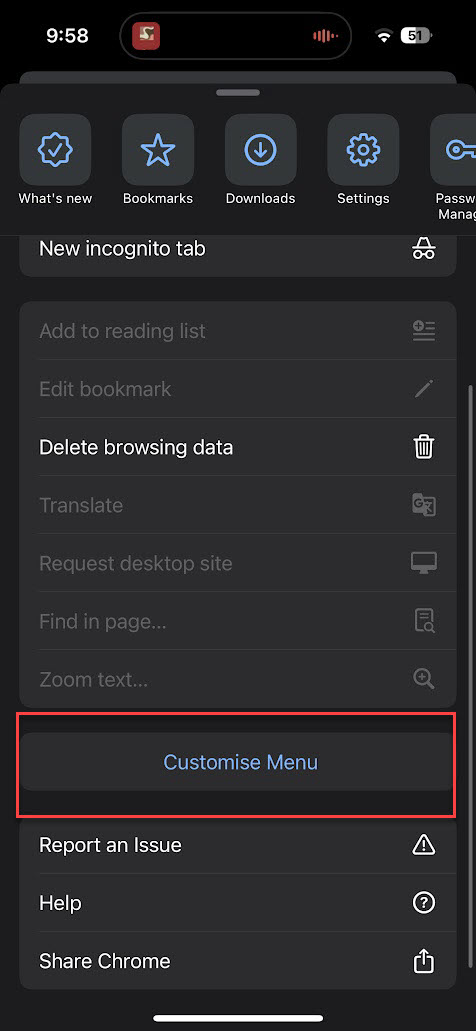
- In the Customize view, you can drag items in the carousel similar to your app icons on the apps menu. Touch and hold an icon and move it to change the position. Tap the remove (-) icon to hide it from the carousel.

- Similarly, select or deselect menu options in the list. You can also use the hamburger icon (three lines) on the right to reorder these menu options.

When you are done, go back to your settings menu. Confirm that the order has changed the way you wanted. Did that work? Let me know in the comments section below.

Leave a Reply