Home » Google Chrome » How to Make Website Text Larger on Android

How to Make Website Text Larger on Android

Updated On:

By

Is the default text size too small for you to read? Let me show you how to make website text larger on Chrome for Android.

Increase Font Size on Chrome – Android

  1. Tap the three-dots settings menu.Chrome Android Three Dots Menu
  2. Choose Settings.
    Chrome Android Settings
  3. Scroll down to find Advanced and then select Accessibility.Android Chrome - Accessibility
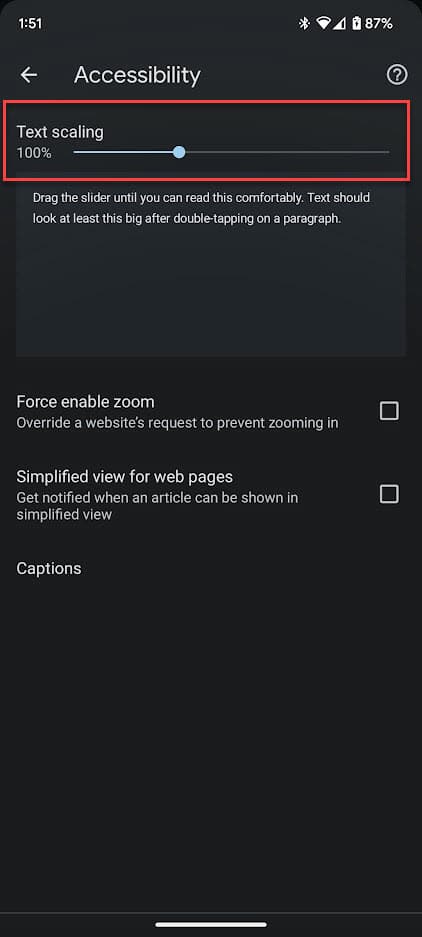
  4. Use the Text scaling scrollbar to increase or decrease the text size.Chrome Android Text Size Change
  5. The sample text below the scrollbar displays the new text size.Chrome Android Sample Text Size
  6. Stop scrolling when the size of the sample text is to your liking.

You have now changed the default font size for websites on Android. Ask your questions in the comments form below and I will help you answer them.


Discover more from Chrome Story

Subscribe to get the latest posts sent to your email.

Tags:

4 responses to “How to Make Website Text Larger on Android”

  1. Sara Avatar
    Sara

    I have tried this and nothing has changed. What else can you suggest? TIA

    1. Dinsan Avatar

      Which phone are you using? And what’s the Android version?

    2. Dinsan Avatar

      Can you try changing the font size from the Phone’s settings?
      Settings > Accessibility > Display > DIsplay size and text.

  2. Sara Suhr Avatar
    Sara Suhr

    Google Pixel 6
    Android 13

Leave a Reply

Discover more from Chrome Story

Subscribe now to keep reading and get access to the full archive.

Continue reading

Discover more from Chrome Story

Subscribe now to keep reading and get access to the full archive.

Continue reading